The problem with sharing client resources
You are a freelancer, an agency, or a consultant. You have a client. You need to share files with them: design mockups, a contract, an invoice, a report. Or maybe you are launching something and want to give early access to a select group. You do not want this content public. But you also do not want to build a member portal with logins and user accounts.
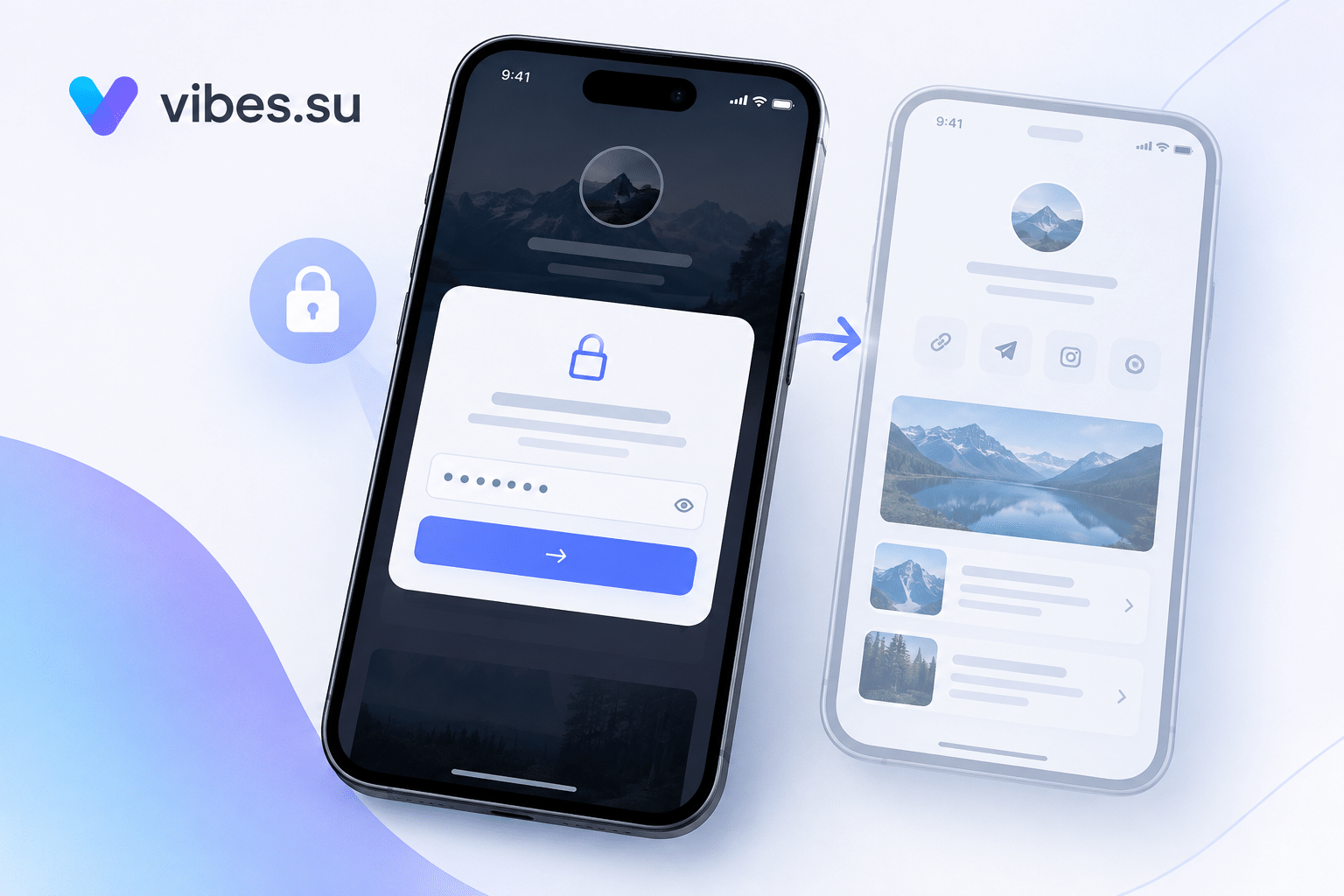
The middle ground is a password-protected bio page. A single page with all your links, locked behind a shared password. Anyone with the password gets in. Anyone without it sees only the entry screen.
This guide explains what password-protected bio pages are good for, what they are not, and how to set one up in Vibes.
What password protection actually does
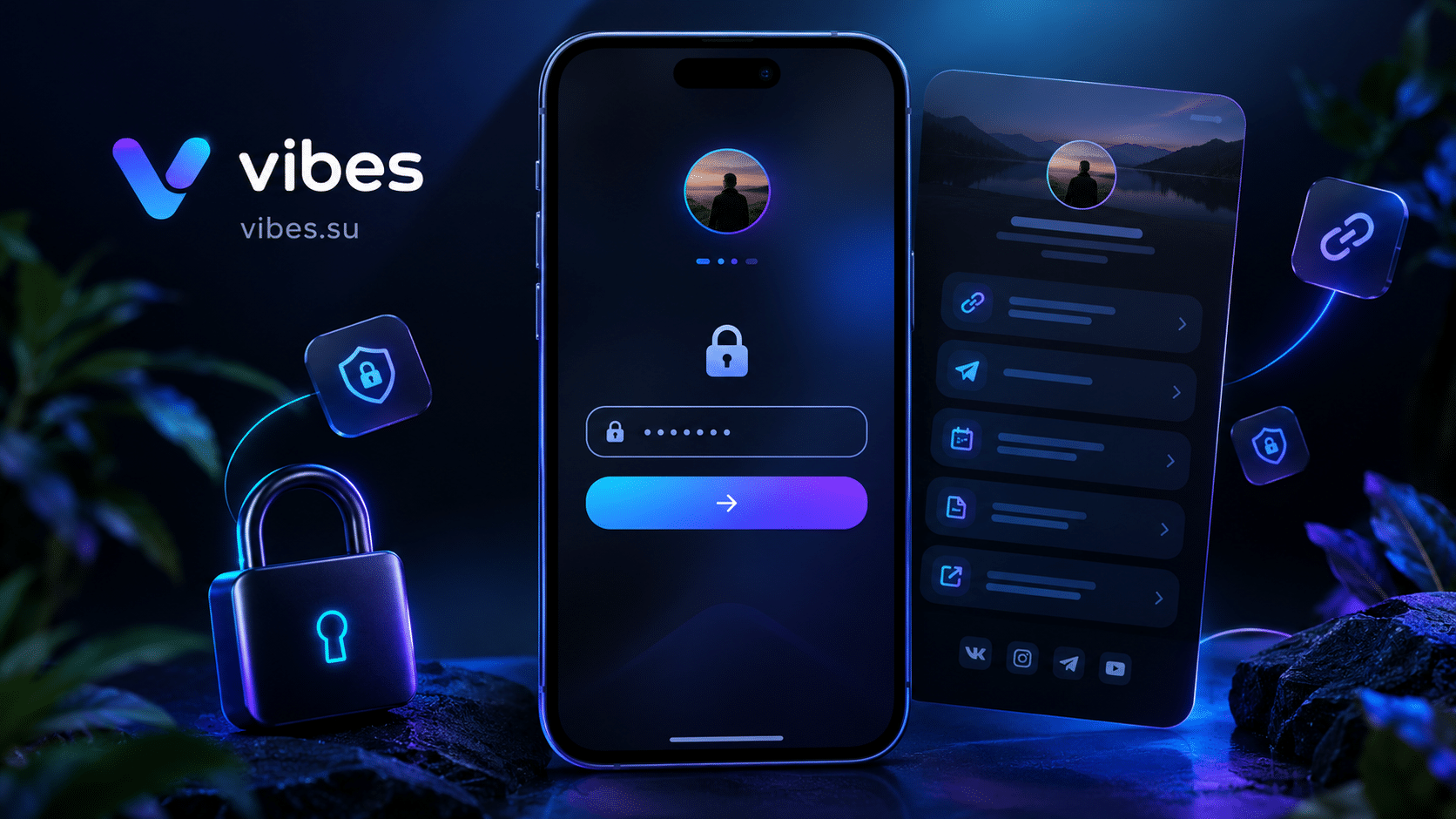
A password-protected bio page shows a password entry form before displaying any content. When a visitor enters the correct password, the page unlocks and they see the normal bio page: all your links, blocks, and content. The platform typically stores the password as a hashed value and sets a session cookie so the visitor does not have to re-enter the password on every visit.
This is not the same as user authentication. There are no individual accounts. There is one shared password. Anyone who has it can access the page. Anyone who shares it can give access to others. It is a soft gate, not a security system.
For many business use cases, that is exactly enough. You are not protecting state secrets. You are protecting client deliverables from accidental public exposure. You are giving a beta group early access. You are sharing wedding photos with guests. A shared password is the right tool for these jobs.
When password protection is the right tool
Password-protected bio pages work best in specific scenarios.
Client deliverables. You finished a project. You have mockups, final files, and an invoice. You put them all on a bio page, lock it with a password, and send the client the link and password separately. The client gets everything in one place. Nothing is public.
Soft launches. You are launching a product or a campaign. You want early access for a beta group or a select list. You create a bio page with the preview links, protect it with a password, and share the password with the group. When you are ready for the public launch, you remove the password or create a new public page.
Private events. You are organizing a wedding, a private party, or an intimate workshop. You have a page with the schedule, location, hotel recommendations, and RSVP link. You protect it with a password and share it with the guest list.
Internal team links. You have a set of tools, documents, or dashboards for your team. You do not want them public. You put them on a bio page, protect it, and share the password with team members.
Press previews. You want journalists to see product information before the embargo lifts. You create a bio page with the press kit, protect it with a password, and give the password only to accredited press.
When password protection is NOT the right tool
Password protection is not a replacement for real authentication. If you need individual user accounts, per-user access control, or audit logs, a shared password will not work.
If you are selling a paid course or premium content, a shared password is not a paywall. You need a platform that handles payments and access control, like a dedicated course platform.
If you need to revoke access for a specific person, a shared password cannot do that. Once someone has the password, they have it. You can change the password, but that revokes access for everyone, not just one person.
For most freelance and small business use cases, the limitations do not matter. You are sharing with a small, trusted group. You control who gets the password. The simplicity of a shared password is the point.
How to create a password-protected bio page in Vibes
Setting up a password-protected bio page in Vibes takes a few minutes.
Step one: create or open a bio page
Log in to your Vibes dashboard. Go to the bio pages section. Create a new page or open an existing one. If you are using this for a specific client or project, create a dedicated page. Do not mix client deliverables with your public bio page.
Step two: add the content you want to share
Add blocks to the page. For client deliverables, you might add a link to the final files, a link to the invoice, a link to the contract, and a short message explaining what each link is for. For a soft launch, add preview links, a feedback form, and a countdown.
Keep the page focused. This is not a public bio page with ten links. It is a private page with the specific resources this client or group needs.
Step three: enable password protection
In the page settings, find the privacy or protection section. Enable password protection. Enter a password. Most platforms require a minimum of six to eight characters. Choose something that is easy to share verbally but hard to guess. A mix of words and numbers works well.
Do not use a password you use elsewhere. If this password leaks, you do not want it to compromise other accounts.
Step four: test the page
Open the bio page link in an incognito browser window. You should see the password entry form, not the content. Enter the password. The page should unlock and show your content. If the password does not work, check the settings and try again.
Step five: share the link and password separately
Send the bio page link to your client or group. Send the password through a different channel. For example, send the link by email and the password by Telegram or SMS. This way, if one channel is compromised, the attacker still does not have both pieces.
Do not put the password in the same message as the link. Do not post it publicly. Do not use the same password for multiple client pages.
Step six: manage access
When the project is done, you can remove the password to make the page public, change the password to revoke access, or delete the page entirely. If you need to give access to a new person, send them the link and password. If someone leaves the project, change the password and share the new one with the remaining people.
Scenario: freelancer delivering a project
You are a designer. You finished a brand identity project. You have the logo files, the brand guidelines PDF, and the final invoice. You create a bio page with three blocks: one for the logo files, one for the guidelines, and one for the invoice. You protect it with a password.
You send the client the link by email. You send the password by Telegram. The client opens the page, enters the password, and downloads everything. You know they have access. When they pay, you can remove the password or leave it as is.
If the client shares the link with someone else, that person cannot get in without the password. If the client forwards the email but not the Telegram message, the link is useless to anyone else.
Scenario: photographer sharing a client gallery
You are a wedding photographer. You shot a wedding. You have 500 photos ready. You upload them to a static gallery and create a bio page that links to the gallery. You protect the page with a password.
You send the couple the link by email and the password by text message. They open the page, enter the password, and see the gallery. They can share the link and password with family. You know exactly who has access because you control the password.
After six months, you change the password or delete the page. The photos are no longer accessible to anyone who had the old password.
Scenario: agency sharing a beta preview
You are an agency launching a new website for a client. The site is ready but not live. You want the client to review it before launch. You create a bio page with a link to the staging site and a link to a feedback form. You protect it with a password.
You send the link to the client team and the password in a separate message. The team reviews the site and submits feedback. When the site goes live, you delete the bio page or remove the password.
Common mistakes with password-protected bio pages
The first mistake is using a weak password. “123456” or “password” will be guessed. Use a password with at least eight characters, mixing letters and numbers.
The second mistake is sharing the password in the same message as the link. If that message is forwarded, the recipient has both pieces. Send them separately.
The third mistake is reusing a password from another account. If the bio page password leaks, you do not want it to compromise your email or banking.
The fourth mistake is treating this as real security. A shared password is a soft gate. If you need real security, use a proper authentication system.
The fifth mistake is not testing the page. Always open the link in an incognito window before sharing it. Make sure the password gate works and the content is correct.
FAQ
Can I use a different password for each client page?
Yes. In Vibes, you can set a unique password for each bio page. This is useful if you manage multiple clients and want to revoke access for one without affecting the others.
What happens if a client forgets the password?
You can resend it. If you are concerned about security, you can change the password and send the new one. The client will need to re-enter the new password.
Can I remove the password later?
Yes. If you want the page to become public, you can disable password protection in the settings. The page will be accessible to anyone with the link.
Is password protection available on the Free plan?
Yes. Password protection for bio pages is available on all Vibes plans, including Free. You can protect one bio page on the Free plan.
Can I use this for a paid membership?
No. A shared password is not a paywall. If you need to sell access, use a platform that handles payments and user accounts.
Final thoughts
Password-protected bio pages are a simple solution for a specific problem: sharing private links with a trusted group without building a member portal. They are not for security-critical applications. They are for client deliverables, soft launches, private events, and internal resources.
Set one up in Vibes in a few minutes. Add your links, enable password protection, share the link and password separately. Your client or group gets access. The public does not.
Create a password-protected bio page in Vibes. Password protection is available on all plans, including Free. Sign up and create your first gated page. Compare plans at Pricing.