Why events fail at the door
You have planned everything. The venue is booked, the speakers are confirmed, the invitations are sent. Then the day comes, and the line at the entrance stretches around the block. People are fumbling with paper tickets, staff are searching names on printed lists, and the first session starts twenty minutes late because half the attendees are still outside. The event begins with frustration, and that sets the tone for everything that follows.
The problem is not the venue or the speakers. The problem is the check-in process. Paper tickets get lost. Printed attendee lists become outdated the moment someone registers. Manual name searches are slow and error-prone. And every minute spent in line is a minute not spent engaging with your event.
QR codes solve this. A single scan replaces the ticket, the list, and the search. Attendees walk in, scan, and go. No queues, no confusion, no delays. And the same QR code can do more than check-in: it can register attendees, save the event to their calendar, share session materials, and collect feedback after the event.
This guide shows you how to use QR codes for every stage of your event, from the first invitation to the post-event follow-up. And it shows you how to do it in Vibes, where the event QR type is built specifically for this purpose.
What makes event QR codes different
Not all QR codes are the same. A QR code that opens a website is not the same as a QR code that saves an event to your calendar. The difference is in the data encoded in the code.
In Vibes, the QR code generator supports multiple types: text, URL, phone, SMS, email, WhatsApp, FaceTime, WiFi, event, vCard, crypto, PayPal, UPI, EPC, and PIX [citation:12]. Each type encodes different data. The event type is designed specifically for events [citation:5].
When you create an event QR code, you can include several fields. The event location is a string that specifies where the event takes place [citation:5]. The event URL links to a registration page or an event website [citation:5]. The event note allows you to add a description or special instructions [citation:5]. The start and end date times define when the event begins and ends [citation:5]. You can also set alert times: a first alert and a second alert to remind attendees before the event [citation:5].
This is what makes event QR codes powerful. When someone scans the code, their phone does not just open a browser. It recognizes the event data and offers to add the event to the calendar. The event appears in their schedule with the location, the time, and any notes you included. They get reminders from their own calendar app, which reduces no-shows.
A URL QR code opens a page. An event QR code saves the event. That difference matters for attendance.
How to use QR codes across the event lifecycle
QR codes can play a role at every stage of your event: before, during, and after [citation:9]. Here is how to use them.
Before the event: registration and invitations
The first challenge is getting people to register. You can put a QR code on printed invitations, posters, or flyers. When someone scans it, they land directly on your registration page [citation:9]. No typing a URL, no searching for your event. One scan, one registration.
For digital invitations, you can embed the QR code in an email or a social media post. The code can link to your registration form or directly to a calendar event [citation:2]. If you use an event QR code, the attendee can add the event to their calendar immediately, even before they register. This creates a commitment and reduces the chance they forget.
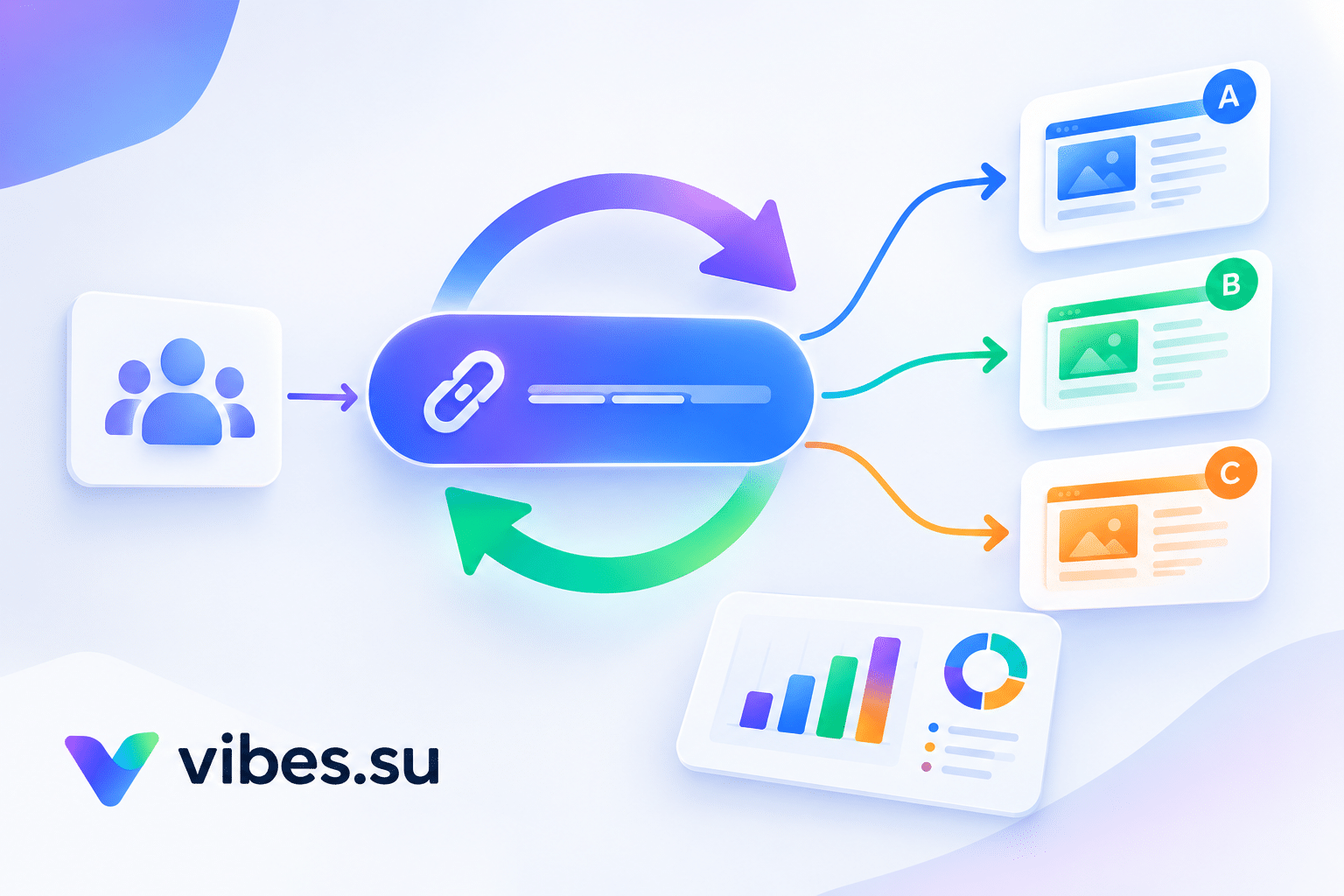
You can also use UTM-tracked links in your QR codes to measure which channels drive registrations [citation:2]. If you put the same QR code on a poster and in an email, you can use different UTM parameters to see which one works better. This tells you where to invest your promotion efforts.
During the event: check-in and access
This is where QR codes save the most time. Each attendee receives a unique QR code, either in their confirmation email or in a mobile app [citation:2]. At the entrance, staff scan the code, and the system instantly validates the ticket and logs the attendance [citation:13].
The benefits are obvious. Lines move faster because scanning takes a second. Fraud is reduced because each code is unique. Attendance data is captured automatically, so you know exactly who showed up and when [citation:13]. For large events, this is the difference between a smooth entry and a chaotic one.
You can also use QR codes for access control. A QR code on a wristband or badge can grant access to VIP areas, speaker lounges, or age-restricted zones [citation:2]. Staff scan the code and see if the attendee has the right access level.
For sessions and workshops, QR codes at room entrances can track attendance [citation:2]. This tells you which sessions are popular and which ones need more promotion next time.
During the event: engagement and networking
QR codes are not just for logistics. They can also drive engagement. At the entrance or on signage, a QR code can open a map of the venue on the attendee phone [citation:9]. This helps people navigate a large space without printed programs.
For networking, attendees can scan each other QR codes to exchange contact information [citation:2]. If the code is a vCard QR, the contact saves directly to the phone. No business cards, no typing numbers. This is especially useful at conferences and meetups where people meet many new contacts in a short time.
Speakers can display a QR code on their final slide. Attendees scan it to access the slides, handouts, or supplementary materials [citation:2]. You can also use QR codes for live polls or Q&A. A code on the screen opens a polling page or a question submission form [citation:2].
Sponsors can use QR codes at their booths for product demos, lead capture, or promotional downloads [citation:2]. This gives sponsors a measurable return on their investment.
After the event: follow-up and feedback
The event does not end when the last attendee leaves. QR codes can keep the engagement going. A QR code on exit signage or in a thank-you email can link to a feedback survey [citation:2]. Because it is easy to scan on the spot, response rates are higher than if you send a link later.
You can also use QR codes to share photos and videos from the event [citation:9]. A code on a thank-you card or posted on social media can link to a gallery or a recap video. This gives attendees something to remember and share.
Finally, QR codes can promote your next event. A code that links to your next event page or online shop keeps the momentum going [citation:9].
How to create an event QR code in Vibes: step-by-step
Step one: open the QR code generator
Log in to your Vibes dashboard and go to the QR codes section. Click to create a new QR code. You will see a list of types. Select event [citation:12].
Step two: fill in the event details
Enter the event location. This can be a physical address or a virtual venue [citation:5]. Enter the event URL if you have a registration page or an event website [citation:5]. Add a note if you want to include special instructions or a description [citation:5].
Set the start date and time and the end date and time [citation:5]. This is what gets saved to the attendee calendar. Set the alert times if you want attendees to receive reminders before the event [citation:5].
Step three: customize the design
Choose colors, shapes, and a logo if you have one. Vibes supports many style options for the eyes of the QR code, including square, dot, rounded, diamond, and others [citation:12]. You can also add a frame with text.
Keep the design simple. The most important thing is that the QR code scans easily. High contrast between the code and the background is essential. If the code is too colorful or too small, phones may struggle to read it.
Step four: test the QR code
Before you print anything, test the code on your own phone. Scan it and check that the event details appear correctly. Make sure the dates, times, and location are accurate. Check that the calendar prompt appears. If something is wrong, fix it before you print.
Step five: download and distribute
Download the QR code in the format you need. For digital use, PNG is fine. For print, use SVG or a high-resolution format so the code stays sharp at any size. Add the QR code to your invitations, posters, badges, and email signatures.
Step six: track scans and measure results
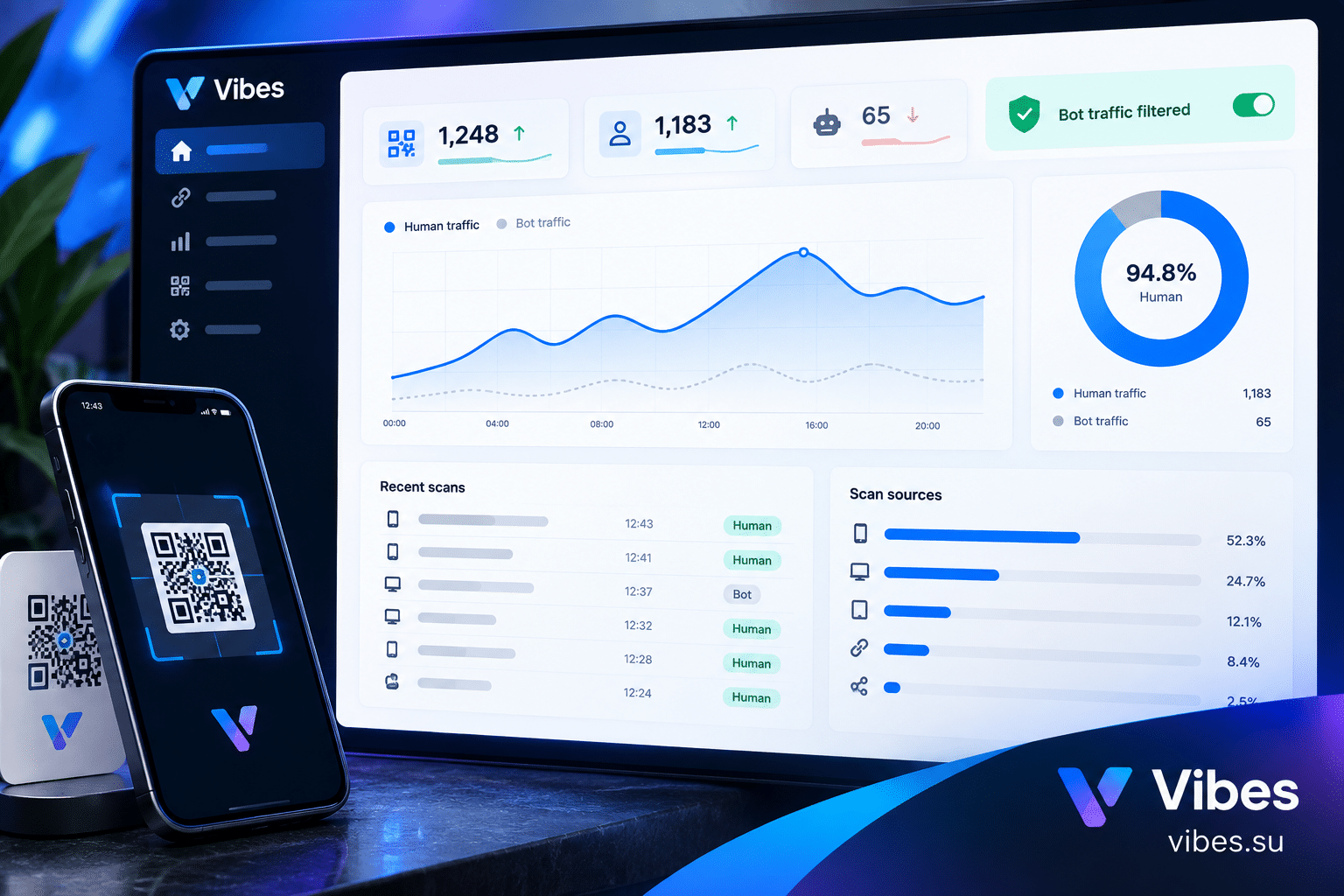
Event QR codes in Vibes are dynamic, which means you can track scans. In the analytics section, you can see how many times the code was scanned, when, and from which devices and countries. This tells you which channels and which placements drive the most engagement.
Scenario: conference with 500 attendees
You are organizing a conference. You have 500 registered attendees. Without QR codes, check-in would take hours. With QR codes, it takes minutes.
Each attendee receives a unique QR code in their confirmation email. At the entrance, you set up three scanning stations. Staff scan each code, validate the ticket, and log the attendance. The line moves quickly because each scan takes a second. Attendees walk in without delay.
During the event, you use QR codes for session check-in. Each room has a code at the entrance. Attendees scan it when they enter, and you get data on which sessions are most popular. You also use QR codes for networking: attendees scan each other badges to exchange vCard contacts.
After the event, you send a thank-you email with a QR code linking to a feedback survey. Because the code is easy to scan, you get a high response rate. You also share a photo gallery via QR code, so attendees can relive the highlights.
Scenario: workshop with 50 attendees
For smaller events, QR codes are still useful. A workshop with 50 attendees does not need a complex check-in system, but QR codes still save time and reduce friction.
You put a single QR code on the invitation. Attendees scan it to add the workshop to their calendar. On the day of the event, you have a tablet at the entrance with a QR scanner. Attendees show their ticket QR code, you scan it, and they are checked in. No paper lists, no name searches.
During the workshop, you display a QR code for materials. Attendees scan it to download slides or worksheets. At the end, you show a QR code for feedback. It is simple, fast, and efficient.
Scenario: virtual event with registration and access
Virtual events have their own challenges. Attendees need to access the stream, and you need to know who attended. QR codes can help.
You send a QR code in the registration confirmation email. When the event starts, attendees scan the code to open the streaming link. This gives you data on who actually attended, not just who registered. You can also use QR codes for virtual networking: attendees scan a code to join a breakout room or a networking session.
For virtual events, the event QR type is still useful. You can include the event URL and the start time. Attendees scan the code and add the event to their calendar, so they get a reminder before the stream begins.
Best practices for event QR codes
Use clear calls to action. A QR code alone does not convince people to scan. Add short text that tells them what they get: Scan to Register, Scan to Check In, Scan for Schedule [citation:9]. When people know the benefit, they are more likely to scan.
Choose the right size. For flyers and handouts viewed up close, one inch (2.5 cm) is the minimum. For posters and banners viewed from a distance, go larger [citation:9]. If the code is too small, people will not be able to scan it.
Test before you print. Always scan the QR code with your own phone before you print a thousand copies. Check that the event details are correct, the calendar prompt appears, and the code scans easily.
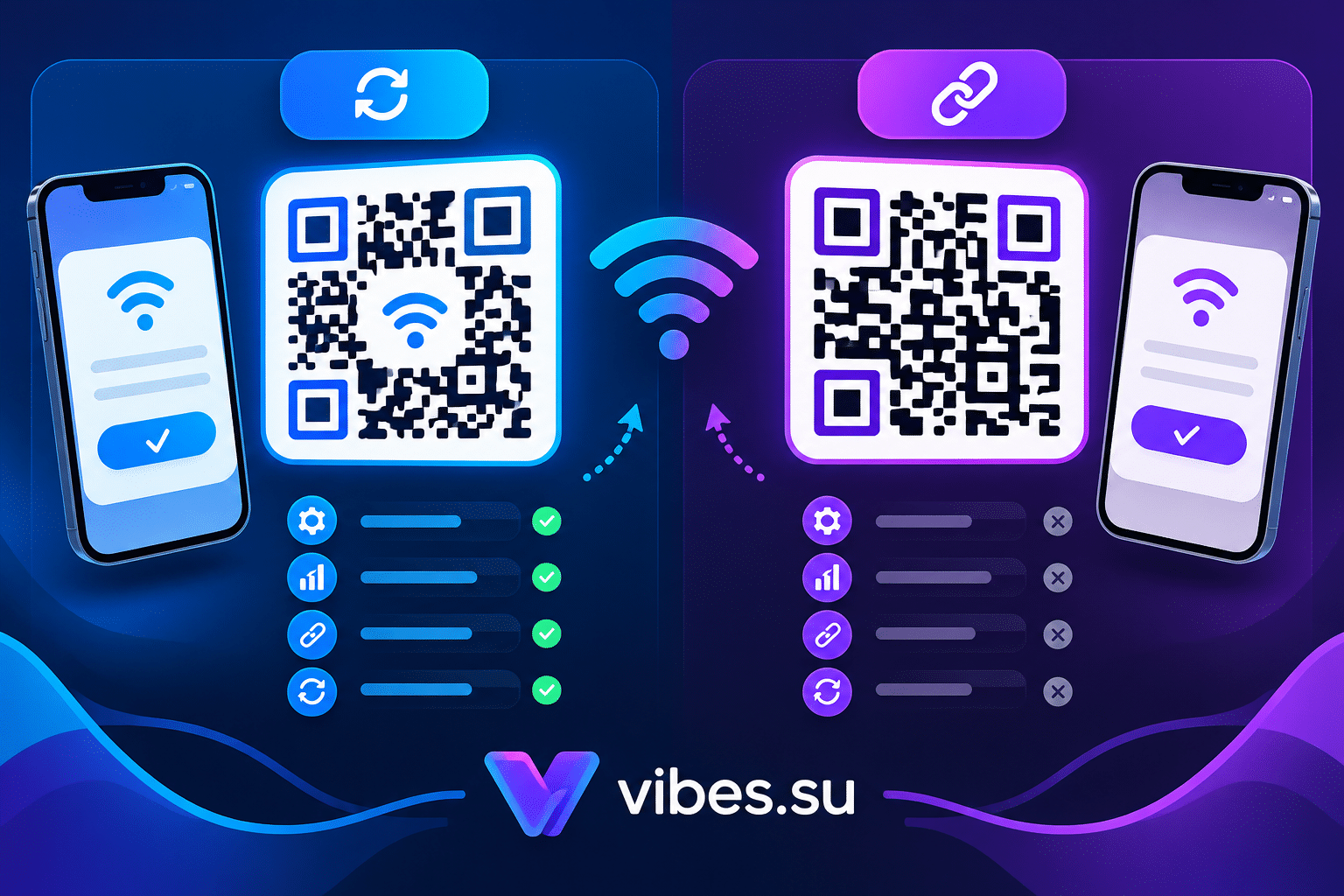
Use dynamic QR codes for flexibility. Dynamic QR codes can be updated without reprinting. If the event location changes or the registration URL changes, you can update the code without replacing all your printed materials.
Track scans to measure success. Use the analytics in Vibes to see how many times each QR code was scanned. This tells you which channels and placements work best. If a poster generates many scans and a flyer generates few, you know where to focus next time.
Common mistakes with event QR codes
The first mistake is making the QR code too small. If people cannot scan it easily, they will not try. Make the code large enough for the viewing distance.
The second mistake is low contrast. A light gray code on a white background is hard to scan. Use a dark color on a light background.
The third mistake is no call to action. People need to know what the QR code does. Add a short label above or below the code.
The fourth mistake is not testing. A QR code that works on your phone might not work on older phones or in different lighting conditions. Test on multiple devices.
The fifth mistake is ignoring analytics. If you do not track scans, you do not know what works. Check the analytics after the event to learn for next time.
The sixth mistake is using a static QR code when you need flexibility. If you might need to update the event details, use a dynamic QR code so you can change the data without reprinting.
FAQ
Can I use the same QR code for registration and check-in?
You can use the same QR code for both purposes, but they work differently. A registration QR code opens a registration form. A check-in QR code validates a ticket. For check-in, each attendee typically needs a unique code. For registration, a single code on a poster or invitation is fine.
Do attendees need an app to scan the QR code?
No. Most modern smartphones have a built-in camera that can scan QR codes. Attendees just open their camera, point it at the code, and the action happens automatically. No app required.
Can I update the event details after creating the QR code?
Yes, if you use a dynamic QR code. In Vibes, dynamic QR codes can be updated without reprinting. You change the event details in the dashboard, and the QR code remains the same. If you use a static QR code, you cannot update it after creation.
How do I track how many people scanned the QR code?
In Vibes, event QR codes are dynamic and trackable. Go to the analytics section to see scans, unique users, devices, countries, and time. This data helps you measure the success of your QR code placements.
Can I use event QR codes for virtual events?
Yes. You can include the event URL in the QR code, which links to your virtual event page or stream. Attendees scan the code and add the event to their calendar. You can also use the code to open the stream directly.
What is the maximum number of QR codes I can create?
The limit depends on your plan. The Free plan includes 10 QR codes. The Pro plan includes 100. The Business plan includes unlimited QR codes. For most events, the Free or Pro plan is sufficient.
Can I add a logo to the event QR code?
Yes. Vibes supports adding a logo to the QR code. This makes the code more branded and recognizable. Keep the logo small so it does not interfere with scanning.
Final thoughts
QR codes are not just a convenience. They are a tool that can transform how your event runs. They eliminate queues, reduce fraud, capture attendance data, and keep attendees engaged before, during, and after the event.
The key is to use the right type of QR code for each purpose. Use event QR codes to save the event to calendars and reduce no-shows. Use unique QR codes for check-in to speed up entry. Use vCard QR codes for networking. Use URL QR codes for feedback and materials.
In Vibes, all of this is available in one place. You create the QR codes, customize the design, track the scans, and see the analytics. No separate tools, no complicated setup. Just a QR code generator that understands events.
Create your first event QR code in Vibes. The Free plan includes 10 QR codes with basic analytics. Sign up and create your code in minutes. Compare plans at Pricing. To learn more about tracking QR code scans, read our guide on tracking QR code scans. To understand the difference between static and dynamic QR codes, see dynamic vs static QR codes.