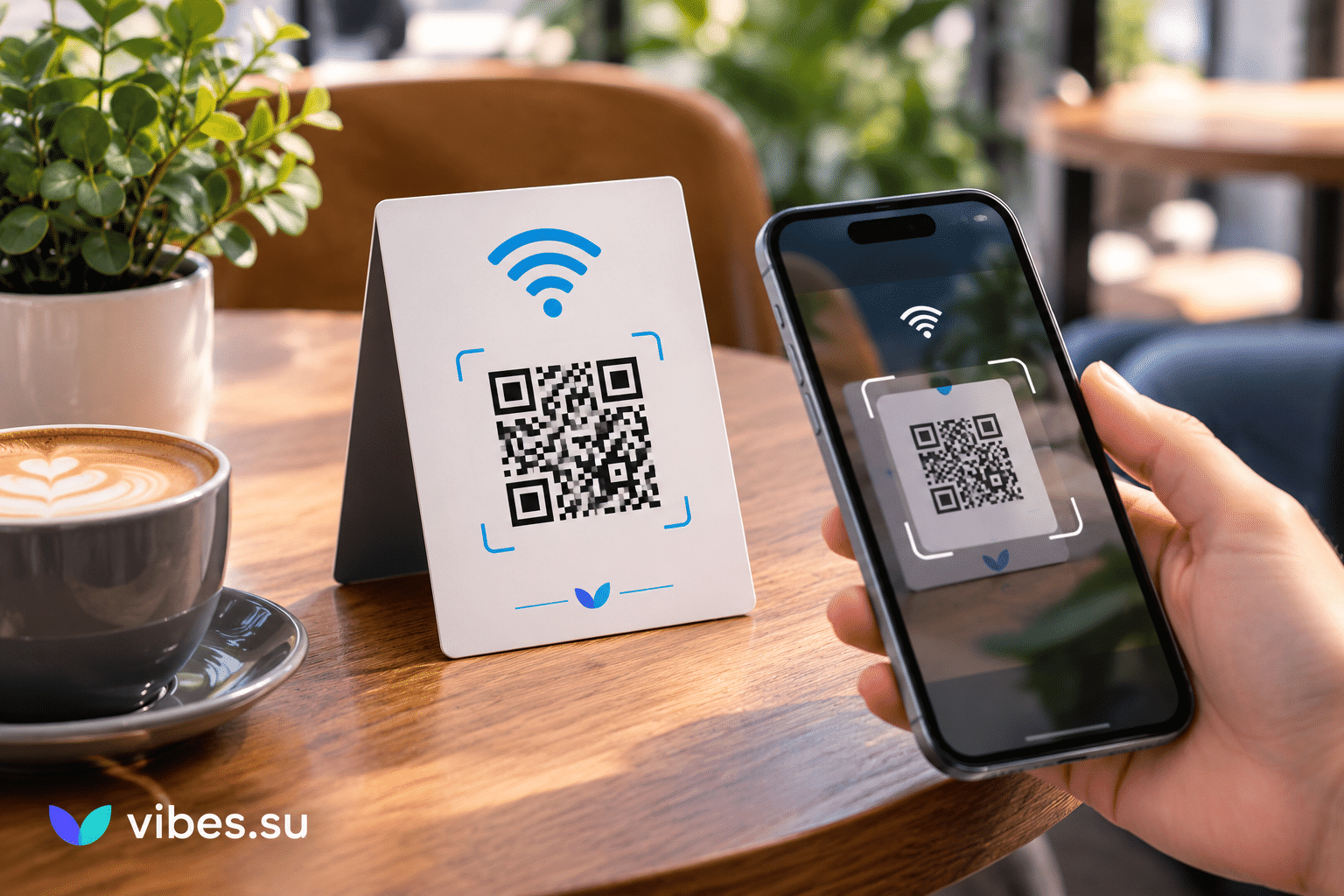
Why Wi-Fi QR codes make sense for guest access
Every cafe, restaurant, and office has the same small problem: guests need Wi-Fi, and asking for the password every time is awkward. Staff get tired of repeating it, guests feel like they are interrupting, and the password itself is often hard to say and easy to mistype. A Wi-Fi QR code solves this. The guest points a phone at the code, taps once, and is connected. No password to spell, no staff interruption, no mistakes.
This article is about how to set up Wi-Fi QR codes for guests in cafes and offices. It covers what to consider, how to present the code, and how to keep access simple and reasonably secure. It is not about the general idea of QR codes; it is about the specific scenario of guest Wi-Fi.
How a Wi-Fi QR code works
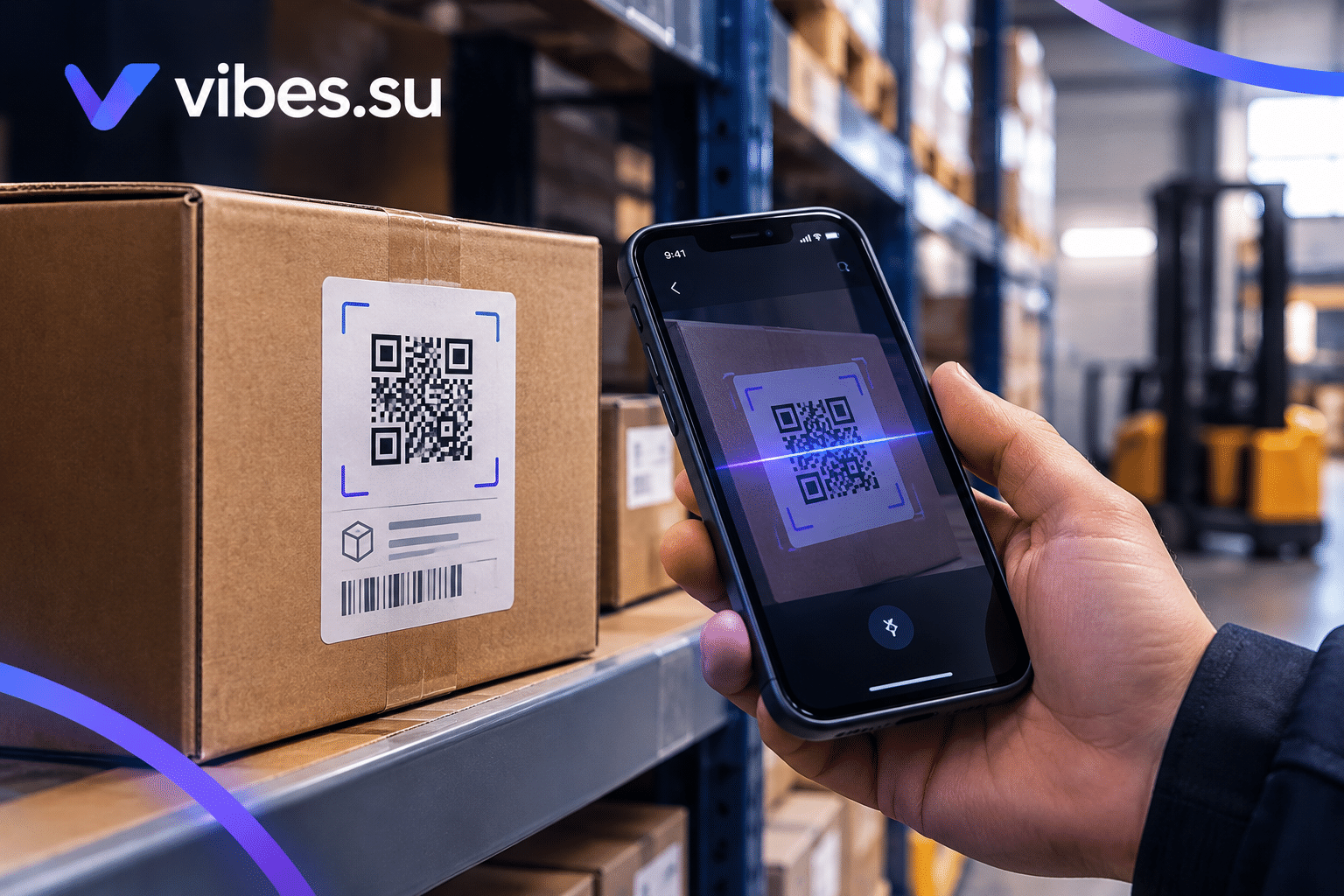
A Wi-Fi QR code contains the network name (SSID) and the password, encoded in a format that phones understand. When a guest scans the code, the phone offers to join the network automatically, using the credentials embedded in the code.
This is different from a QR code that simply opens a link. The Wi-Fi QR code does not need an app; most modern phones can scan it from the camera or a built-in scanner and connect in one step.
The guest does not see the password unless they look for it. The connection happens in the background. This is convenient and reduces friction.
What to include in a guest Wi-Fi QR code
At a minimum, the QR code needs the network name and password. But a few additional choices matter.
Network name. The SSID should be clear and match what the guest sees on their phone. If the SSID is something like "CafeGuest_5G_2024", the guest may be confused. A simple name like "Cafe Guest" is easier.
Password. The password should be strong enough to prevent random access but simple enough to type if the guest needs to. Since the QR code carries the password, typing is rare, but it can happen.
Hidden network. If the network is hidden, the QR code should still work, but some phones handle hidden networks differently. It is usually simpler not to hide the network.
Security type. The QR code should specify the security type (WPA2, WPA3, etc.). If it does not match the actual network configuration, the phone may fail to connect.
Guest network vs main network. In an office, the guest Wi-Fi QR code should lead to a guest network, not the main internal network. This keeps the office network separate from guest traffic.
For comparison of static and dynamic Wi-Fi QR codes, see dynamic vs static WiFi QR codes.
Where to place the QR code
Placement matters for how often the code is used.
On tables. In a cafe or restaurant, a small card or sticker on each table is convenient. Guests see it while sitting and can scan it without getting up.
At the counter. A sign at the counter or near the entrance helps guests who want to connect before sitting down.
On the menu. If the menu is printed, the Wi-Fi QR code can be included in the corner. This is convenient but less visible than a table card.
In the office reception. A sign at the reception desk helps visitors connect while waiting.
In meeting rooms. A small card in each meeting room helps guests connect during meetings.
On the guest materials. If you have printed materials for guests, include the Wi-Fi QR code there as well.
In all cases, the code should be easy to find and easy to scan from where the guest is sitting or standing.
How to present the code to guests
A QR code alone does not explain itself. The guest needs to know what it is and why they should scan it.
A short text next to the code works best:
— "Scan to connect to Wi-Fi";
— "Free Wi-Fi — scan here";
— "Guest Wi-Fi — scan to join".
The text should be clear and large enough to read from where the guest is. In a cafe, guests may be sitting across the table, so the text needs to be visible from that distance.
If the guest does not know how to scan a QR code, a small instruction can help: "Open your camera and point it at the code." Most guests know this, but a short hint does not hurt.
Security considerations for guest Wi-Fi
A guest Wi-Fi QR code makes connecting easy, but it also makes access easier. A few things to consider.
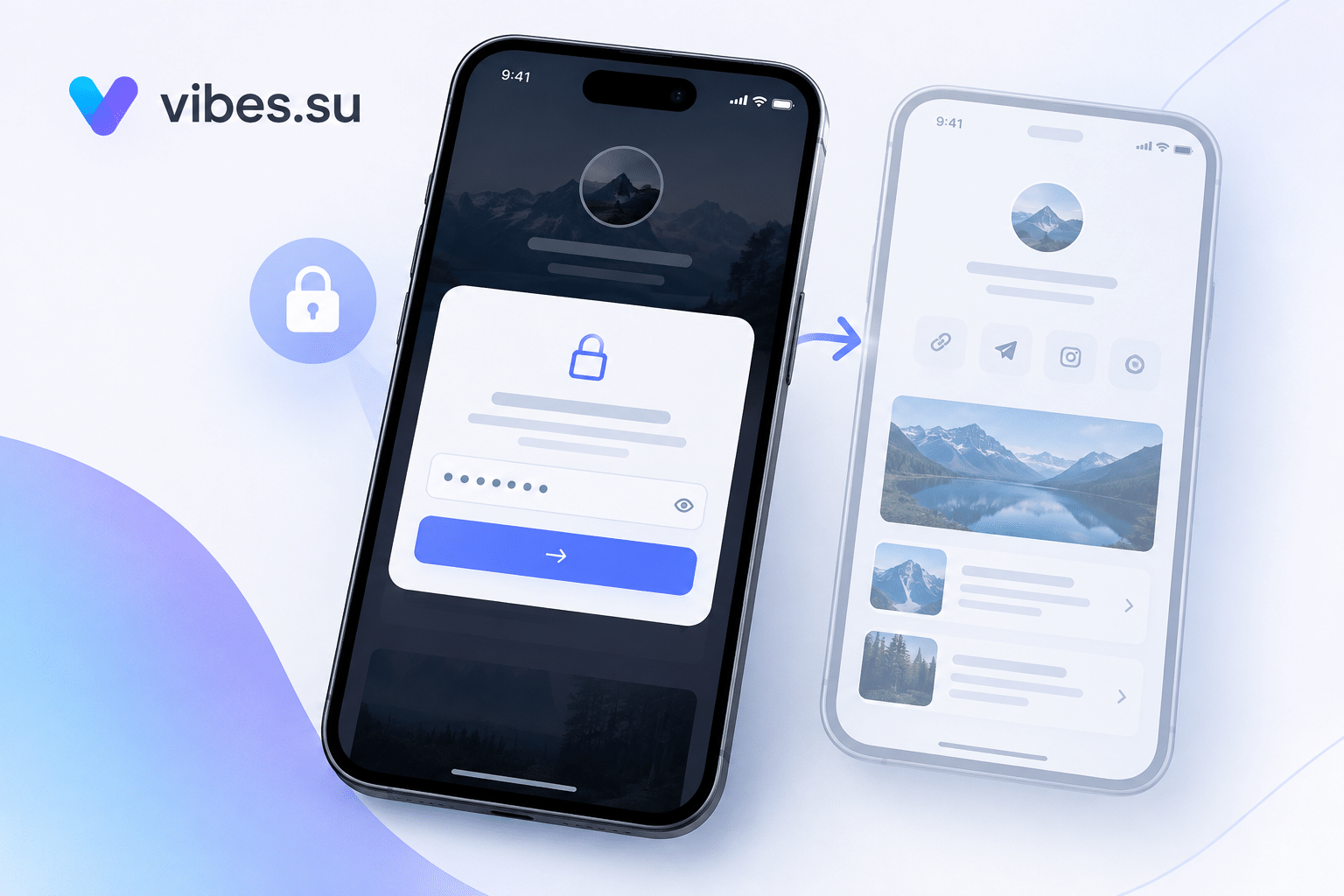
Use a separate guest network. Guests should not be on the same network as your internal systems. A guest network with its own password and access rules is the standard approach.
Change the password periodically. If the password is printed on a QR code that is visible in public, it can be photographed and used by people outside the venue. Changing the password from time to time limits this.
Limit access if needed. Some routers allow limiting guest access by time or by bandwidth. This can be useful if you want to prevent long sessions or heavy usage.
Consider dynamic QR codes. A dynamic QR code can point to a Wi-Fi configuration that is updated when the password changes. This means the printed code stays the same, but the underlying credentials are updated.
Do not include sensitive information. The QR code should only contain the network name and password, not any internal details.
For related access control approaches, see password-protected bio page for clients.
How to set up a Wi-Fi QR code
Setting up a Wi-Fi QR code is straightforward. Most QR code generators support the Wi-Fi format.
Steps:
— decide on the network name and password;
— confirm the security type (WPA2, WPA3);
— generate the QR code using a generator that supports Wi-Fi;
— test the code on multiple phones;
— print the code with clear instructions;
— place it where guests will see it.
A test is essential. A QR code that does not work is worse than no code at all. Test on both iOS and Android, and on older and newer devices if possible.
What to do when the password changes
If the Wi-Fi password changes, the QR code that contains the old password will no longer work. This is a common problem in cafes and offices.
Options:
— reprint the QR code with the new password;
— use a dynamic QR code that points to updated credentials;
— keep the password stable and change it rarely.
If the QR code is printed on many materials, reprinting can be expensive and slow. Dynamic QR codes avoid this by keeping the printed code the same while updating the underlying configuration.
If the code is simple and printed on a few cards, reprinting may be easier. The choice depends on how many materials are printed and how often the password changes.
Common mistakes with guest Wi-Fi QR codes
A few mistakes come up often enough to be worth naming.
Mistake one: the code does not work. Always test before printing.
Mistake two: the code is too small. Guests need to scan it from where they are sitting. If it is too small, they will not bother.
Mistake three: no explanation. A code without text does not tell the guest what it is for.
Mistake four: the code leads to the wrong network. In an office, the guest code should lead to the guest network, not the internal one.
Mistake five: the password is too complex. If the guest needs to type it, a complex password is a problem.
Mistake six: the code is not updated when the password changes. A code that no longer works is worse than no code.
Mistake seven: no fallback. If the code does not work for some reason, the guest should still have a way to connect. A small sign with the password can help.
When Wi-Fi QR codes are not the right choice
Wi-Fi QR codes work in most guest scenarios, but not all.
If the venue has very few guests and the password is easy to share verbally, a QR code may be unnecessary.
If the guests are not familiar with QR codes, the code may not be used. In that case, a simple password sign is better.
If the Wi-Fi network changes frequently, static QR codes become outdated quickly. Dynamic codes or a different approach may be better.
If the venue has strict security requirements, a QR code may be too open. In that case, a different access method may be needed.
Frequently asked questions
How does a Wi-Fi QR code work?
It contains the network name and password encoded in a format that phones understand. When a guest scans it, the phone offers to join the network automatically. No app is needed.
Should I use a dynamic or static Wi-Fi QR code?
A static code is simpler and works for networks that rarely change. A dynamic code is better if the password changes, because the printed code stays the same while the credentials are updated.
Can guests see the password in the QR code?
The password is embedded in the code. It is not displayed as text, but a technically savvy person could extract it. This is why the guest network should be separate from the main network.
What happens when I change the Wi-Fi password?
If the QR code contains the old password, it will no longer work. You either need to reprint the code or use a dynamic code that updates the underlying credentials.
Where should I place the Wi-Fi QR code in a cafe?
On tables, at the counter, on the menu, and on any guest materials. The code should be easy to find and easy to scan from where the guest is sitting.
Is a Wi-Fi QR code secure?
It is as secure as the network behind it. Use a separate guest network, change the password periodically, and avoid putting sensitive information in the code. A QR code makes access easy, so the network should be designed for guest use.
What if a guest cannot scan the code?
Have a fallback: a small sign with the password, or staff who can help. The goal is to make access easy, not to force everyone through one method.